
For educators
SAT Classroom Tools: Assign Practice and Review Progress
See PeakSAT’s invitation-based classroom workflow for targeted practice assignments, mock sessions, collaborator access and CSV gradebook export.
Reviewed
Plan an SAT classroom pilot
Tell us about your group. We can show you the classroom workflow and discuss pricing and student access.
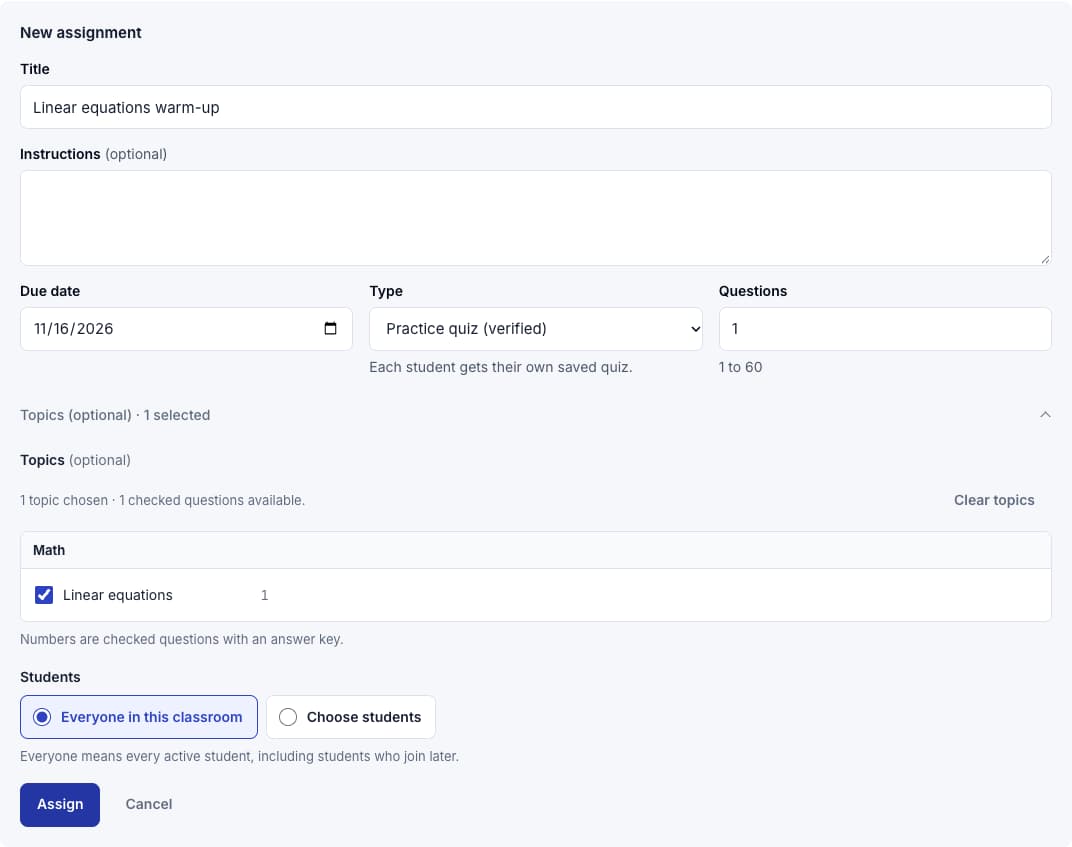
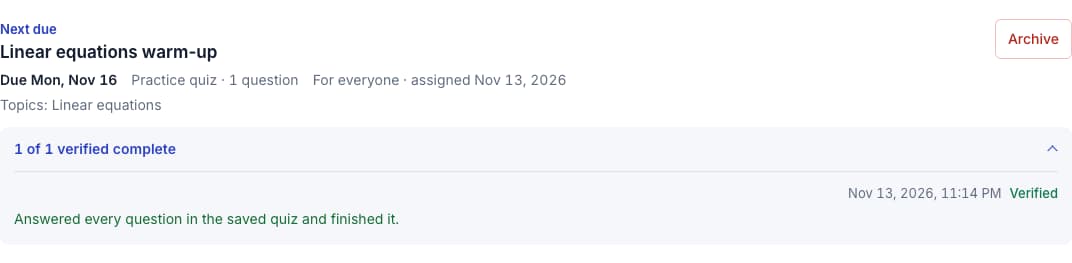
See a practice assignment and its completion
Screens captured in a PeakSAT test classroom.
The short answer
PeakSAT classroom tools help educators organize skill practice and review evidence from students who join their classroom. Create a class, invite students, assign a task with a deadline and inspect the resulting work. Practice assignments can launch a student-specific quiz; other task types can use student-confirmed completion. The distinction stays visible.
How one missed question becomes a next task
Every classroom assignment lands inside this loop: the student works the task on these screens, and the evidence you review in the classroom view comes from them. Practice estimates are not official SAT scores.
Step 1: An assessment shows the starting point
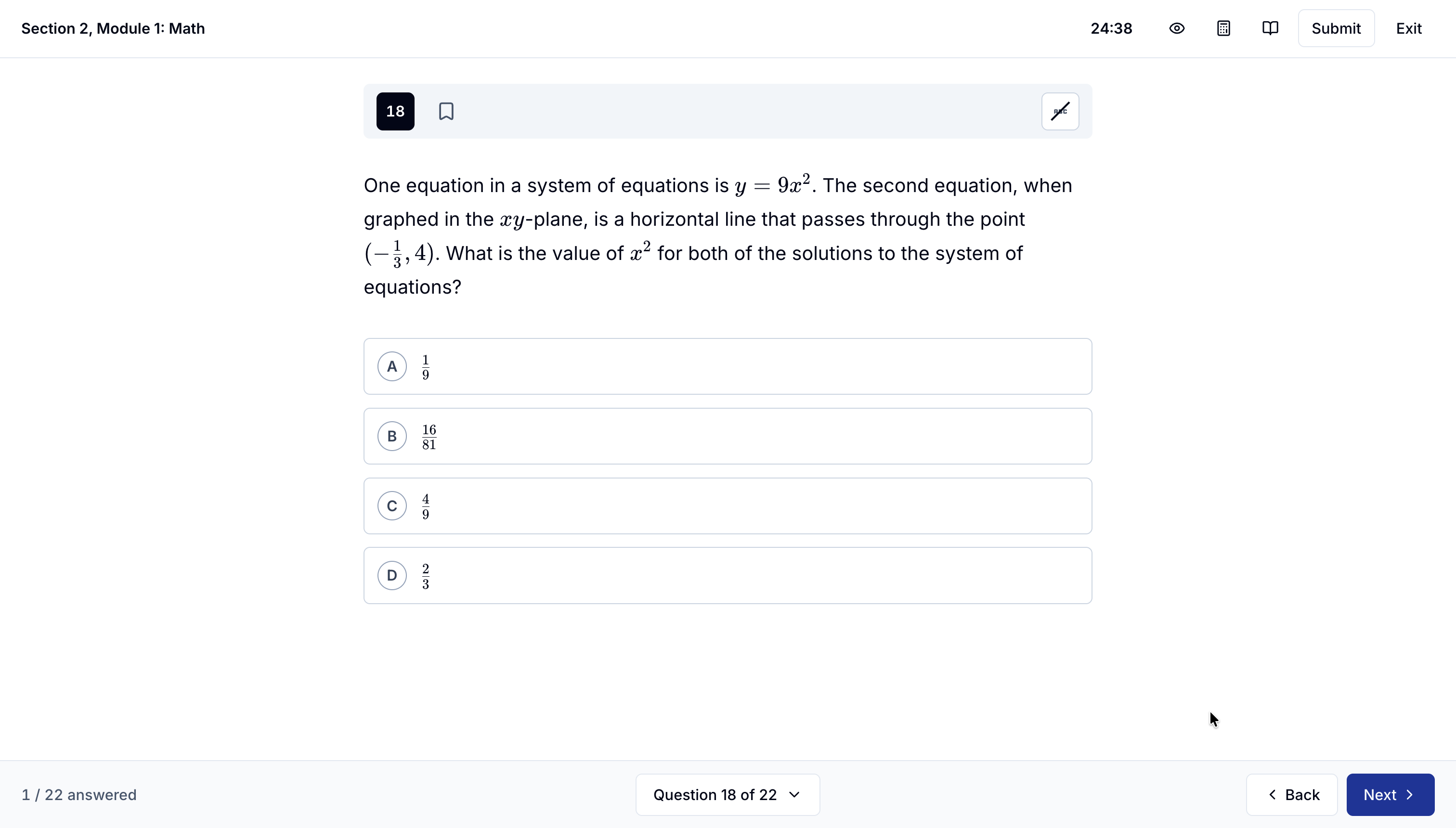
After starting a subscription or card-backed 7-day trial, a student takes an SAT-style assessment with module timing, question flags and a calculator. Submitting it produces a practice estimate and the missed questions grouped by skill, so the next task is a named skill rather than a total score.
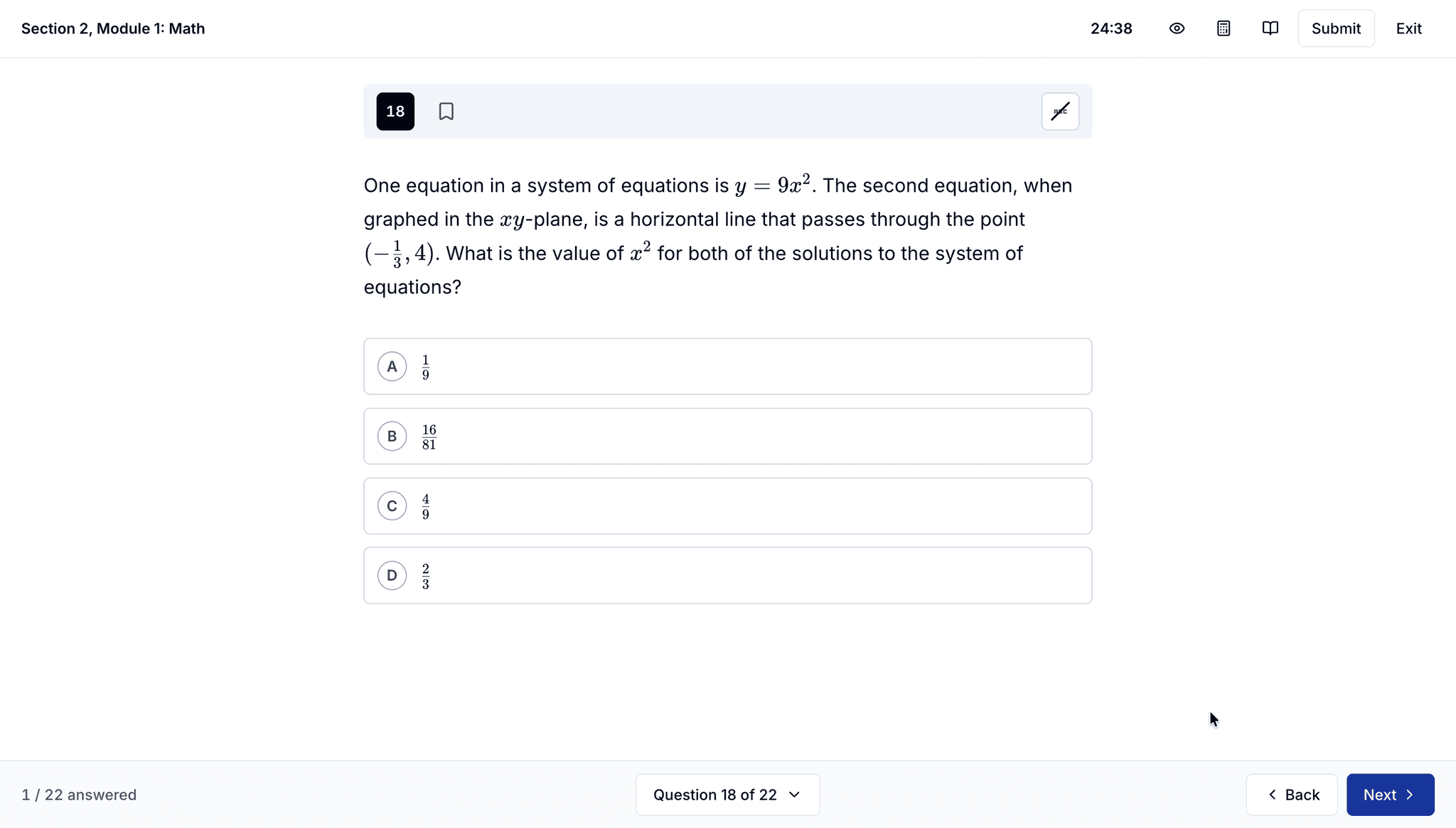
Product capture: a Math module question during an SAT-style assessment, with the module timer, the flag for later review and the Submit control. The practice estimate and the missed questions by skill appear after submission.Open full-size image: PeakSAT assessment screen for Section 2, Module 1: Math, showing question 18 of 22, the module timer, a flag for later, four answer choices and the Back, Next and Submit controls. Step 2: The study plan turns weak skills into dated tasks
The saved plan takes the test date, a goal and the minutes available on each weekday, then schedules practice, lesson, review and test tasks. Topic accuracy from recorded practice decides which skills come first, and every task carries a time budget and the reason it was scheduled. Finished tasks are checked off, and a task can be moved to another day with enough time before the test.
What the screen shows
The Plan screen lists the scheduled tasks by day. Each task shows its title, the activity it links to, its minute budget and the reason it was scheduled, with a checkoff when it is done and a control to move it to another available day.
Text description; no product capture is shown for this step. Step 3: Practice a fresh question in that skill
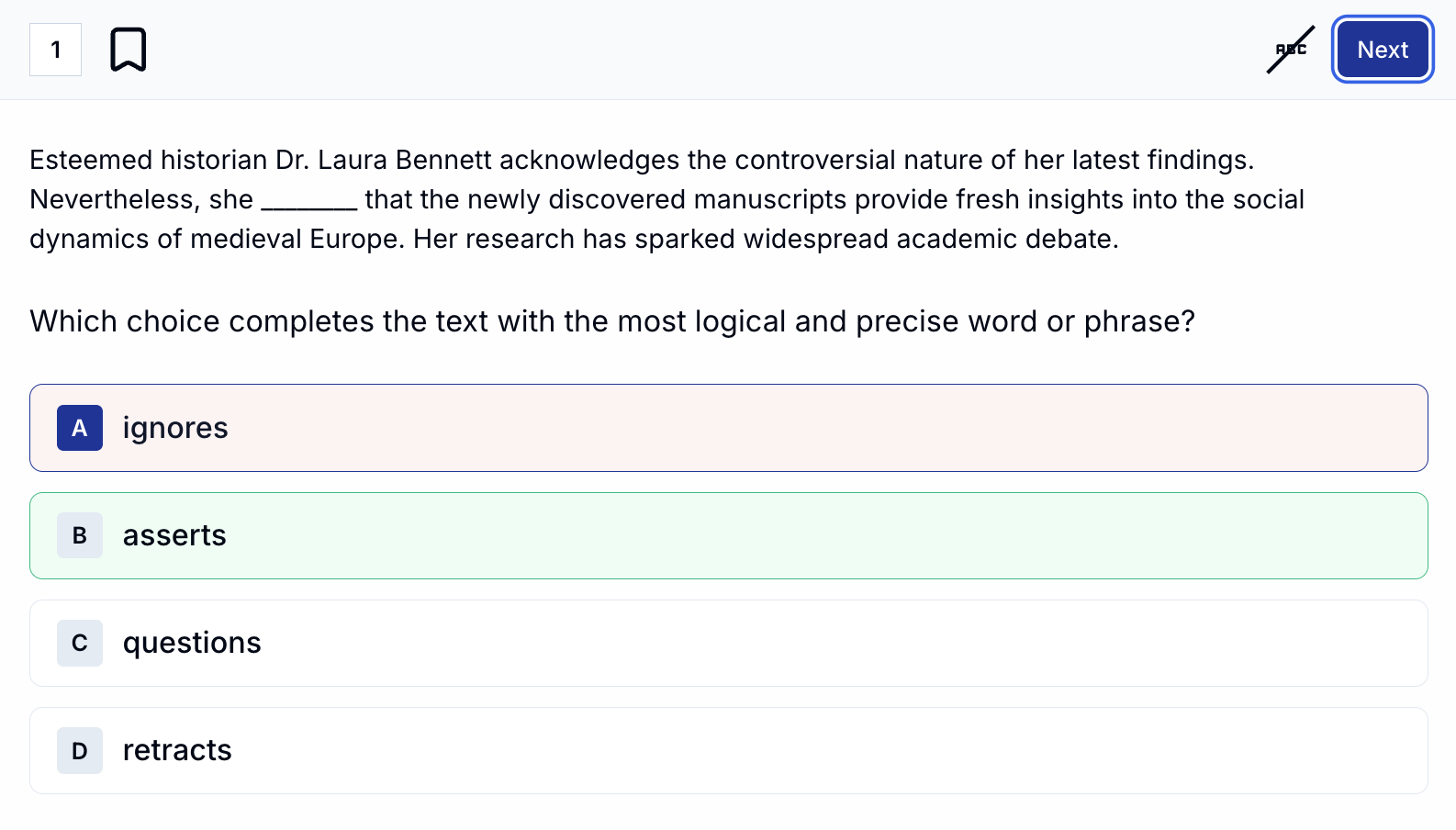
Custom practice lets the student choose the skill, difficulty and length. After each answer the chosen choice and the correct choice are marked and the written explanation shows the method, so a miss becomes a step to re-check instead of a guess. Missed questions also go to the review list.
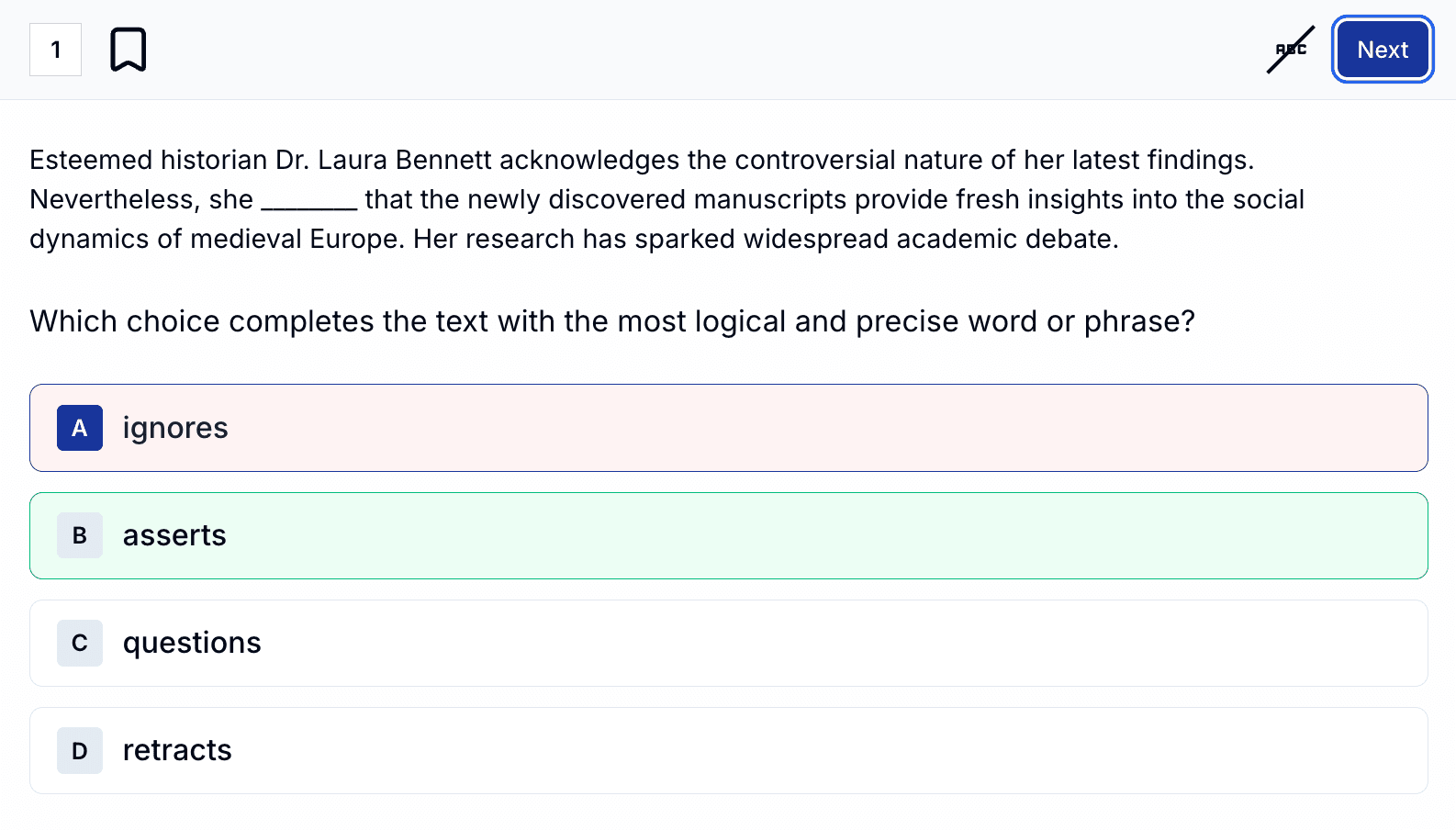
Product capture: a practice question after the answer is checked. The chosen choice and the correct choice are marked; the written explanation follows once the answer is checked.Open full-size image: PeakSAT practice question after an answer is checked: a Reading and Writing words-in-context question whose chosen choice and correct choice are both marked, with a Next button. Step 4: Mistake review feeds the next session
Missed and saved questions collect in the review workspace. The student retries each one, compares the reasoning with the solution, chooses an error label (concept gap, misread, calculation, time, guess or other) and saves a short note. A wrong retry brings the question back in one day; a correct retry schedules it three days out, then seven, and three consecutive correct retries mark it mastered automatically. A question stays in review until it is mastered and returns when it is scheduled. New practice evidence refreshes the plan’s future tasks, and review tasks send the student back to this list.
What the screen shows
The Review screen lists the questions that are due, each with its skill and the saved error label. Opening one shows the question again for a retry, the explanation, the note field and the choice to keep it in review or mark it mastered.
Text description; no product capture is shown for this step.
What a classroom gradebook looks like
The classroom progress view and the gradebook CSV list each student and assignment with a completion label and the evidence behind it. The rows below are invented; the columns mirror what the export distinguishes.
Illustrative example with invented study data
| Student | Assignment | Type | Completion | Skill to re-explain |
|---|---|---|---|---|
| Student A | Sentence boundaries practice, 10 questions, due Oct 16 | Practice quiz | Completed, verified from saved quiz work | Comma splices between two complete clauses |
| Student B | Review missed Transitions questions, due Oct 16 | Review task, student-confirmed | Completed, student-confirmed note | Contrast transitions (however, nevertheless) |
| Student C | Sentence boundaries practice, 10 questions, due Oct 16 | Practice quiz | Pending | Nothing to review yet |
What an educator actually sees
- A classroom with an explicit roster. Invitations are added one at a time or from a roster CSV and shared with the intended person; a student joins by accepting with the invited email. Educator collaborators can be invited, and any membership can be revoked.
- Assignments with a purpose. Each one has a kind (practice, review, test or learn), a title, a deadline and the relevant skill or activity. A practice assignment launches a quiz attached to that student and that assignment.
- Completion labels that stay distinct. Quiz submissions verified from saved activity are labeled separately from student-confirmed notes on other task types, in the classroom view and in the CSV.
- The classroom progress view and gradebook CSV. Use them to find the skill that needs another explanation, then create a short follow-up assignment that changes the problem representation. Classroom notes keep that decision with the class.
- Practice sessions. Schedule a PeakSAT practice assessment with a start time, timing multiplier, break duration and selected students. These rehearse SAT-style practice; official administrations are managed by College Board.
- Access. Classroom management requires full app access, and students need access to their assigned premium activity.
On this page
Start with a focused classroom
Create a classroom, add student invitations individually or from a roster CSV, and share each invitation with the intended person. A student accepts with the invited email before joining. You can invite educator collaborators or revoke membership. Progress access depends on active classroom membership.
Give each assignment a clear purpose
Choose practice, review, test or learn, enter a title and deadline, and set the relevant skill or activity. Practice assignments launch a quiz attached to that student and assignment. Completion labels distinguish quiz submissions verified from saved activity from student-confirmed notes for other tasks. Review the work to decide what needs another explanation.
Review the work behind completion
Use the classroom progress view and gradebook CSV to identify which skills need another explanation. Create a short follow-up assignment that changes the problem representation. Classroom notes and collaborator access keep that workflow organized and give educators evidence for their instructional decisions.
Schedule a practice session
Plan a PeakSAT practice assessment with a start time, timing multiplier, break duration and selected students. These sessions rehearse SAT-style practice; official SAT administrations are managed by College Board. Classroom management requires full app access, and students need access to their assigned premium activity.
Sources
- College Board: educator practice resourcessatsuite.collegeboard.org
- College Board: official SAT practicesatsuite.collegeboard.org
Sources are linked for reference; they do not endorse PeakSAT. How we prepare our guides